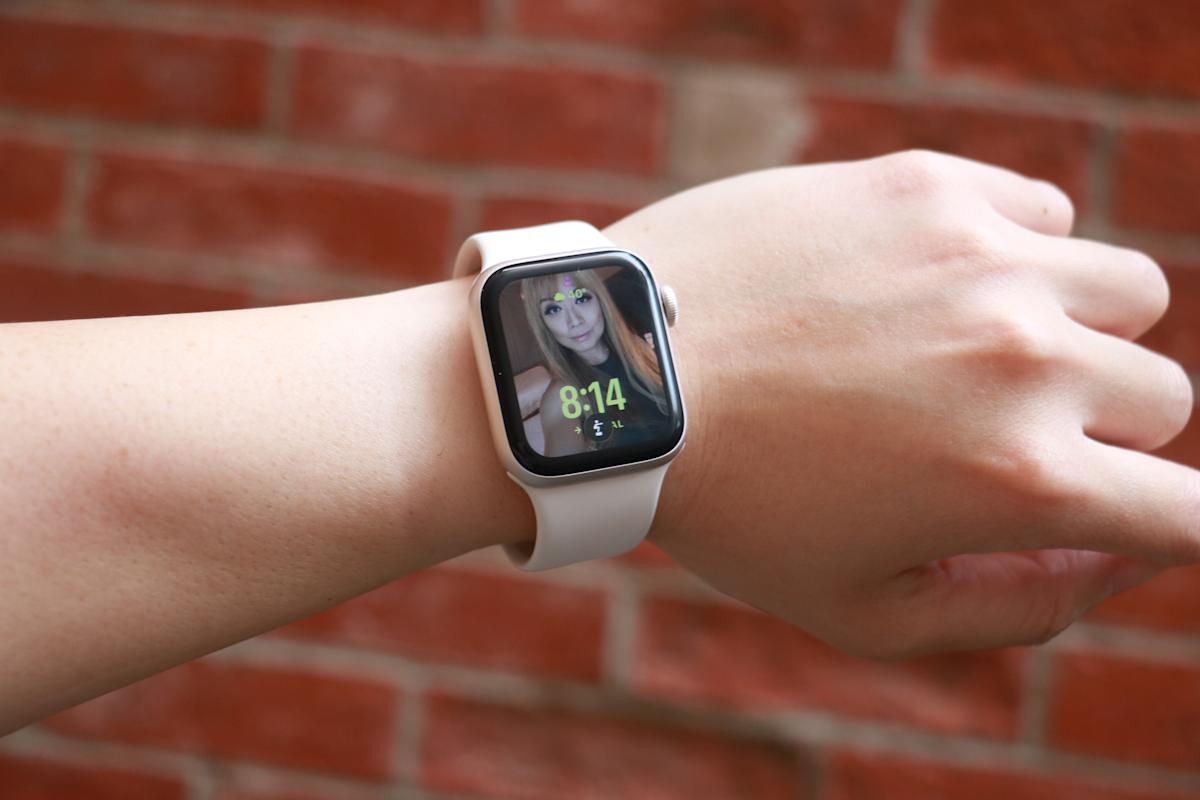
Giving a child an Apple Watch can offer extra peace of mind and tools that promote independence in a controlled way. Apple’s Family Setup feature makes it possible for a kid to use an Apple Watch without owning an iPhone, and the feature set has expanded thanks to recent watchOS updates. It supports communication controls, location tools, Schooltime limits and privacy protections that allow a parent or guardian to manage how the device is used throughout the day.
The setup process begins with creating or signing in with a child’s Apple ID. It continues with adding them to your Family Sharing group on an iPhone and pairing a compatible Apple Watch through the Apple Watch app. Once the watch is linked, you can adjust a range of parental controls that shape how the watch works at home, at school and when the child is out and about.
Confirm device compatibility
Family Setup requires a cellular-capable Apple Watch such as the Apple Watch SE or Series 6 or later. A cellular connection allows the watch to operate independently without an iPhone nearby. The watch must be running a recent version of watchOS and the iPhone used for setup must be running the latest iOS version.
If the watch is not new, it needs to be erased before it can pair with a new user. This can be done directly on the watch through the Settings menu by choosing the general reset option. Once the device is reset it can be paired again from the Apple Watch app.
Create or prepare your child’s Apple ID
Family Setup relies on each child having their own Apple ID. This allows their data, messages, activity goals and device settings to remain separate from other people in the household. If your kid already has an Apple ID, it can be used during setup. If they do not have one, the Apple Watch app will prompt you to create one as you go through the pairing process.
A child’s Apple ID is linked to Family Sharing, which lets the organizer manage permissions from a single iPhone. A parent or guardian can approve contacts, handle screen time requests and view location updates without needing to touch the watch itself. Setting this up first ensures that the watch can be paired smoothly later.
Add the child to Family Sharing
Family Sharing is the foundation for managing the watch, and it’s all controlled through the Settings app on your iPhone. Once Family Sharing is open you can tap the option to add a family member then follow the prompts to link the child’s Apple ID to the group. This also makes you the family organizer, which gives you control of purchase approvals, communication limits and other shared features.
Once the child is added to Family Sharing their information becomes available when you begin pairing the Apple Watch. This makes the process faster since the watch can immediately associate itself with the correct Apple ID.
Pair the watch using Family Setup
Turn on the Apple Watch and place it near your iPhone. A prompt should appear directing you to use your iPhone for setup. If the prompt does not appear, you can open the Apple Watch app, go to All Watches and choose Add Watch. The app will then ask if the device is being set up for you or for a family member. Choose the family member option and continue.
The camera on your iPhone is used to pair the devices. Align the Apple Watch face inside the frame on your screen until the pairing animation is recognized. Once the connection is made the app will ask which family member the watch is for. Select the child’s profile to continue through the remaining steps.
The app will guide you through choosing which wrist the watch will be worn on, setting a passcode, signing in with the child’s Apple ID and enabling services such as Siri and location tracking. You can also set up activity goals tailored to the child’s age and fitness level.
Manage the watch from your iPhone
Once the Apple Watch is paired, the Watch app becomes the main place to manage how it works. The Family Setup interface is designed to give parents and guardians control without needing to handle the watch directly. Most adjustments can be made at any time from the iPhone used for setup.
Screen Time controls allow you to set limits for communication and app use. You can restrict access to certain features during specific times of day, create downtime schedules and manage content restrictions for websites and apps. These settings mirror the Screen Time system used on other Apple devices which makes it easier to keep rules consistent across the household.
Approved contacts can be managed through the communication limits menu. This ensures that the child can send messages and make calls only with approved people. If you add or remove contacts, they are updated instantly on the watch.
Location sharing is handled through the Find My app. You can view the child’s location and set notifications that alert you when they arrive at or leave a particular place. This is useful for school pickups or after-school activities. The watch uses on-device processing for location and messages which helps maintain privacy.
Configure Schooltime and Focus modes
School time is one of the most important parental controls for younger users. It limits interaction with the watch during school hours by locking access to most apps and features. Only the time and a simple yellow icon appear on the screen while Schooltime is active. You can schedule Schooltime from the Apple Watch app so that it automatically turns on and off at the right times each day.
Focus modes offer another layer of control. These modes can reduce distractions during homework, bedtime or other family routines. Each Focus mode can limit notifications and activity alerts so the child is not interrupted when they need to concentrate.
Set up safety features
Emergency SOS is enabled during setup and can be managed afterward in the Apple Watch app. It allows the child to contact emergency services by holding the side button. You can also assign an emergency contact who will receive a notification if SOS is triggered.
The Medical ID should include relevant details such as allergies or medical conditions. This information can be accessed by emergency responders if needed.
Adjust privacy and communication settings
The watch uses on-device processing for messages, location and Siri requests which helps protect your child’s data. Location sharing can be turned on or off at any time and you can manage which apps are allowed to use location services. Communication permissions can also be updated as the child’s needs change.
Apps installed on the watch can be controlled from the Apple Watch app. You can remove apps, restrict access or hide notifications at any time to maintain a balanced experience.




Leave a Reply